
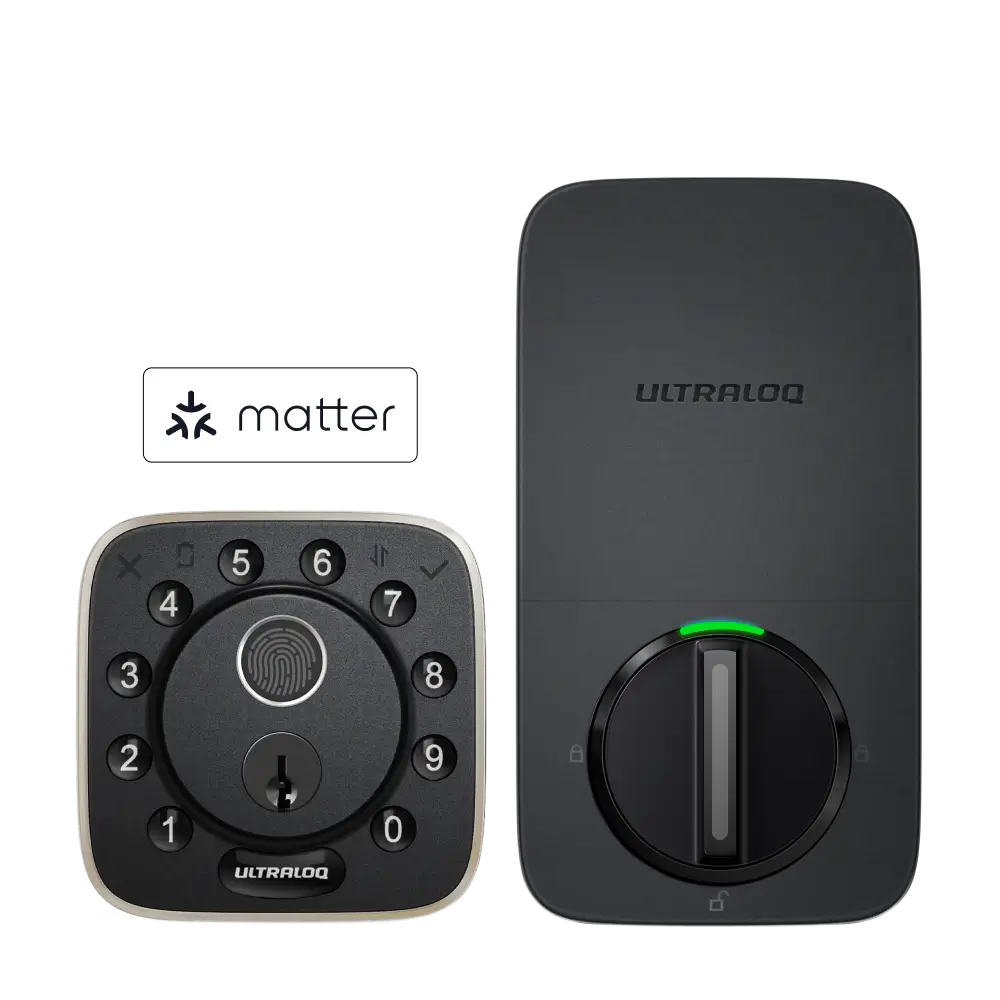

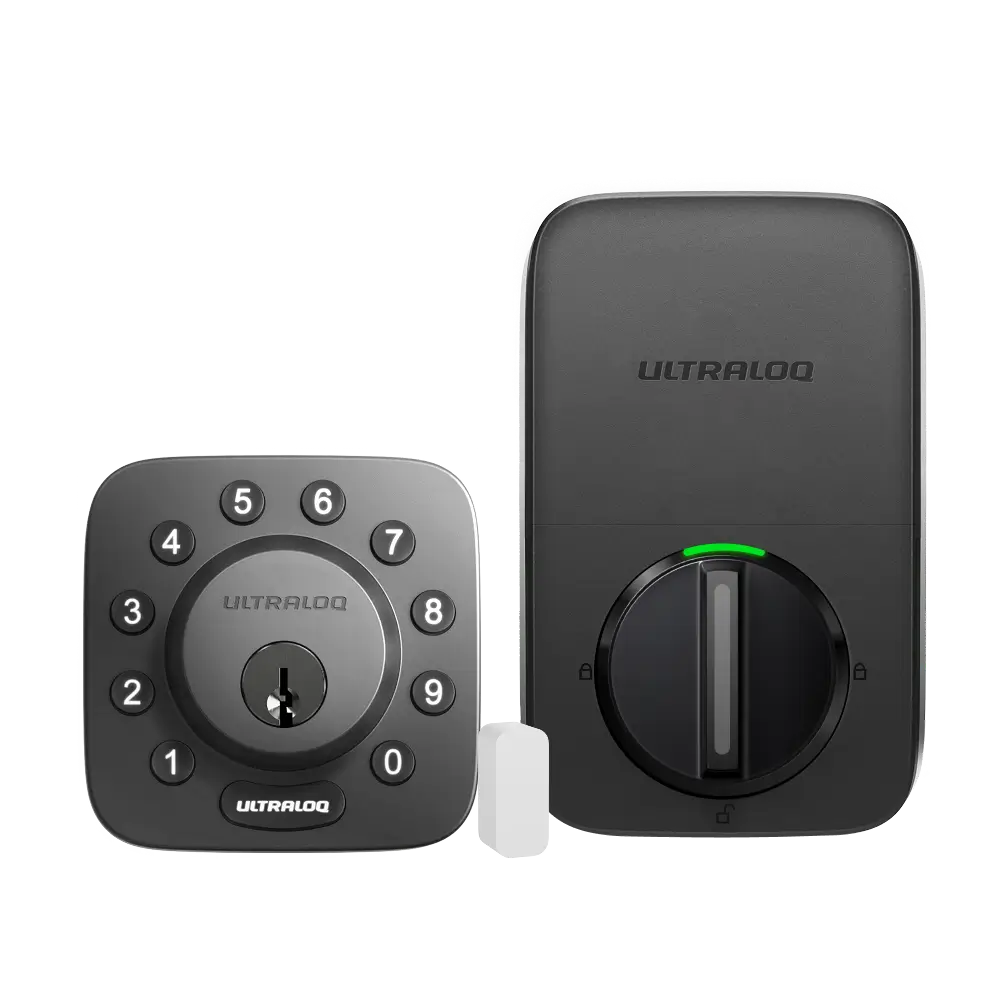
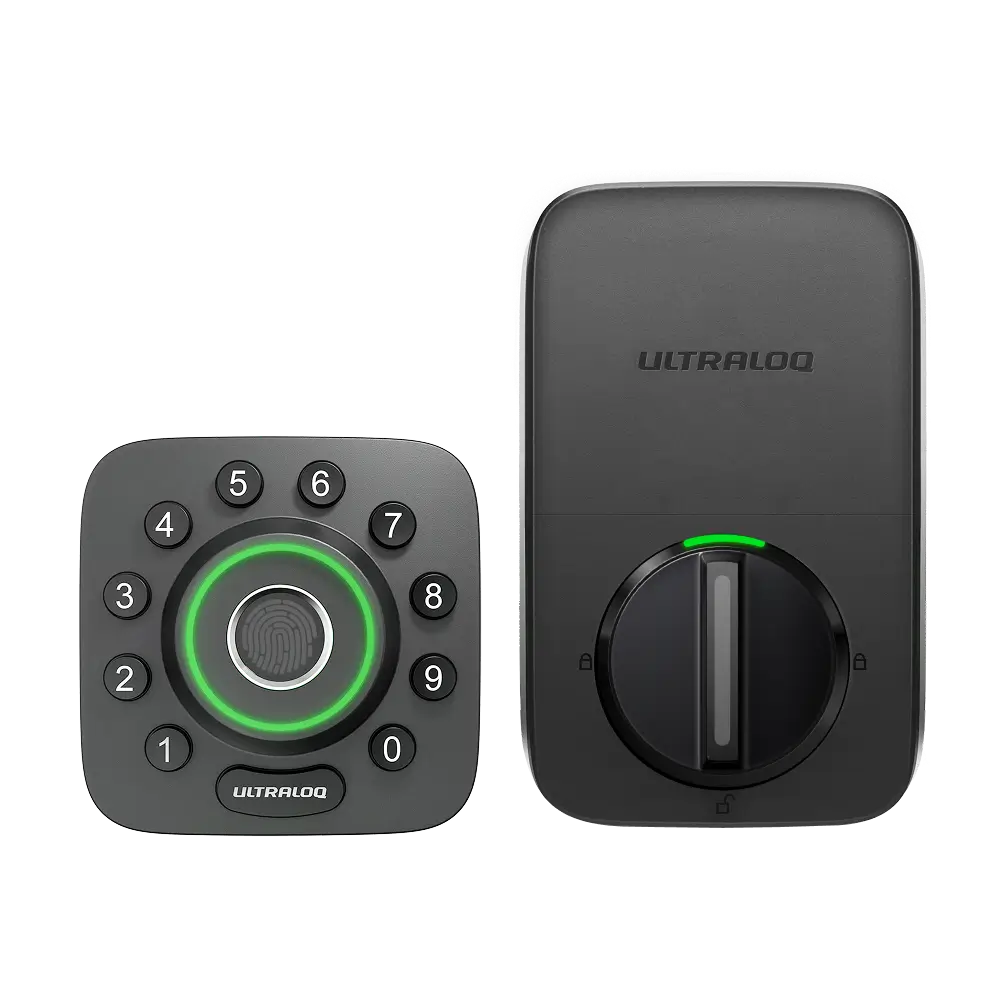
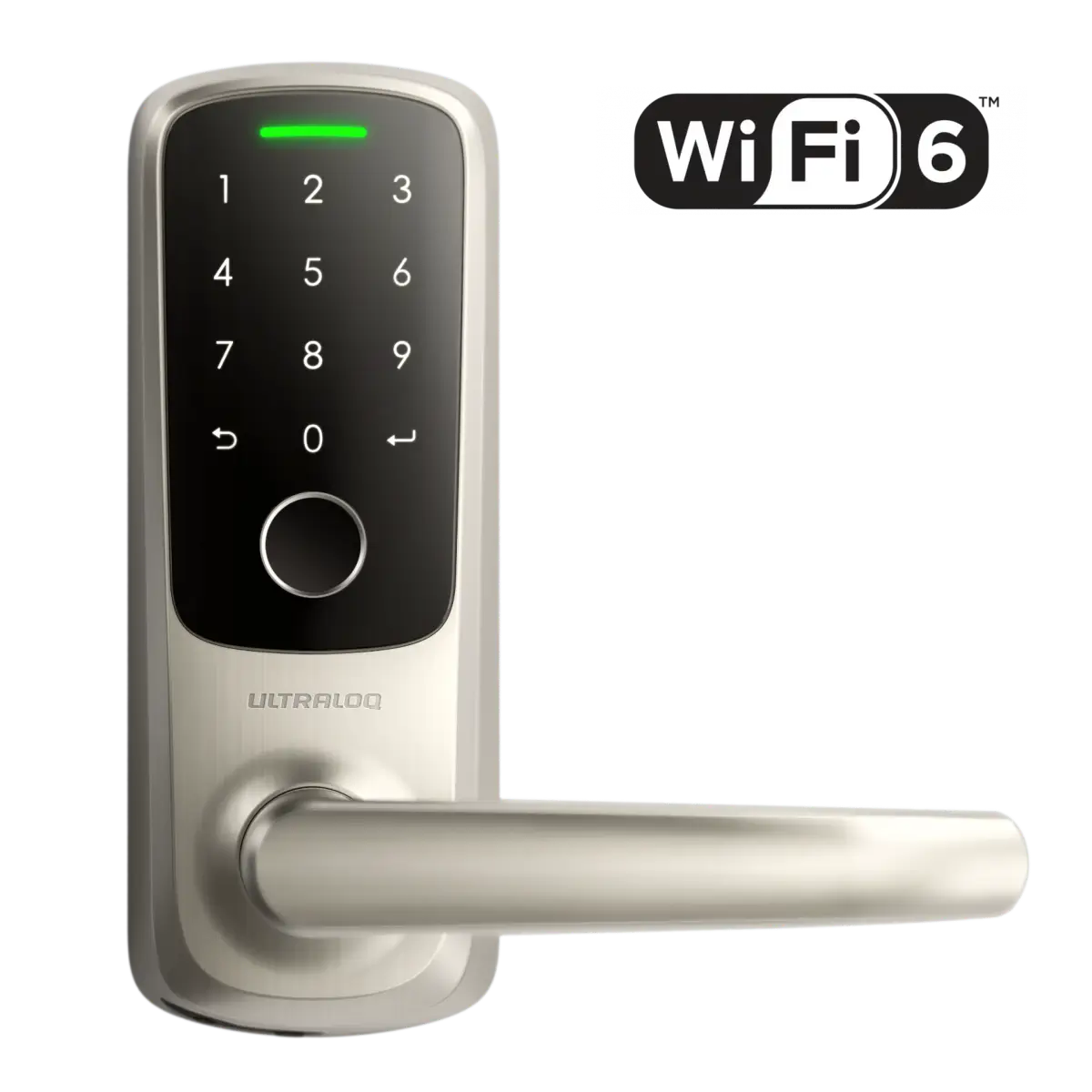



This guide will walk you through pairing your Ultraloq Products to your Android or iOS smartphone.
Requirement:
1. Android or iOS Smartphone
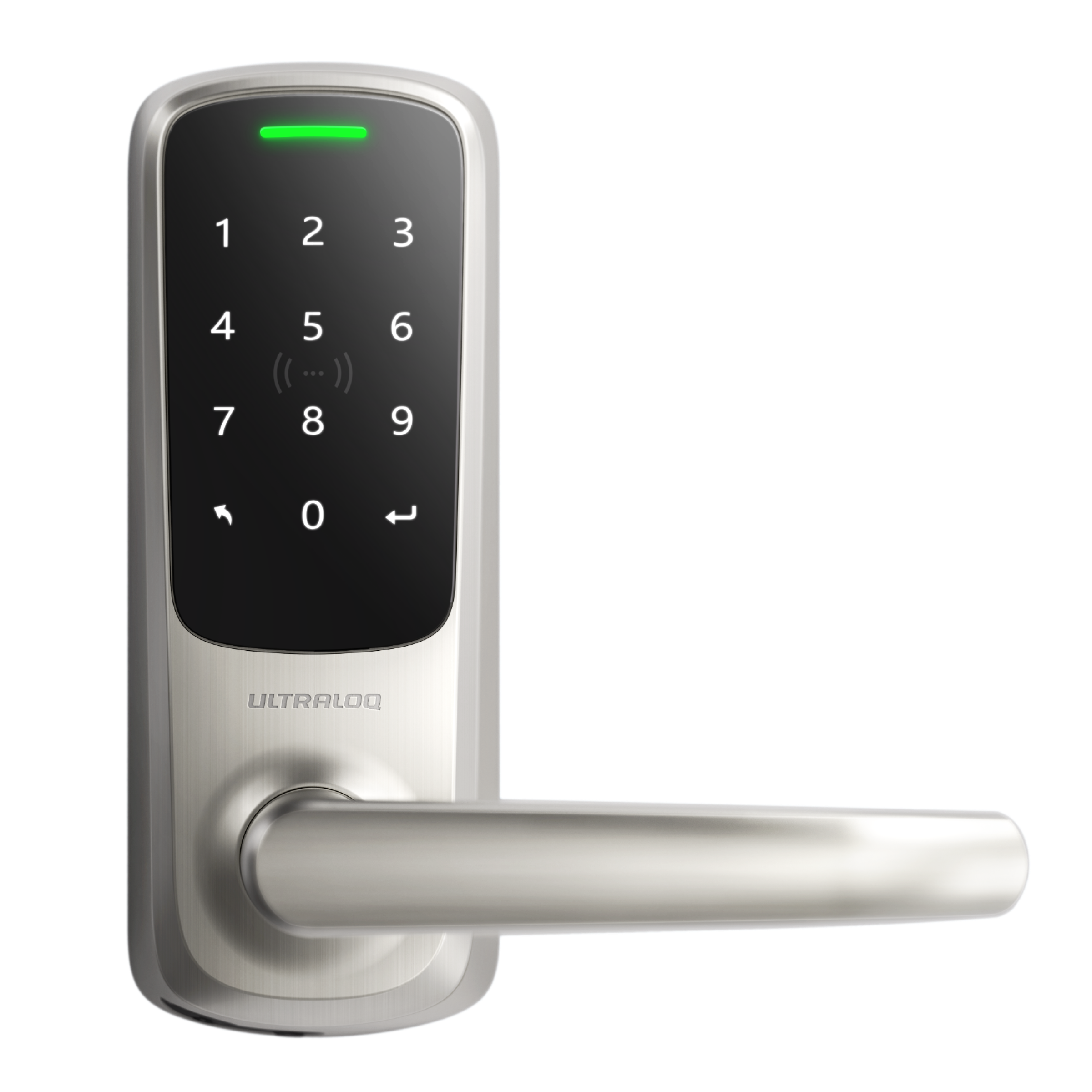
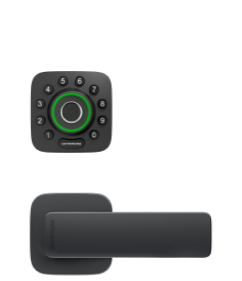
2. Ultraloq Smart Lock includes the following models: Ultraloq U-Bolt Series, Ultraloq UL3 Series, Ultraloq Latch 5 Series, Ultraloq Lever, or Ultraloq UL1/Combo.
Pair the Ultraloq Smart Lock with the Xthings Home(Formerly U home)App:
Step 1. Scan the QR code to install the Xthings Home(Formerly U home) App on the App Store or Google Play.
Note: Please have to allow all the permissions for the App.
Step 2. Reset the Ultraloq Smart Lock to the Factory Default Mode.
Step 3. Open the App and sign in to your Xthings account.
Step 4. Take the smartphone near the lock, within around 3ft.
Step 5. Choose the correct model and click the button to scan the smart lock.
Step 6. Click the lock in the device list and enter a 4~8 digit admin code, then tap on Next.
Step 7. Enter the name of this lock, choose a location for this lock, then tap on Next.
Step 8. Once complete, you will be able to view your Ultraloq via the Xthings Home(Formerly U home) App.