




Required hardware:
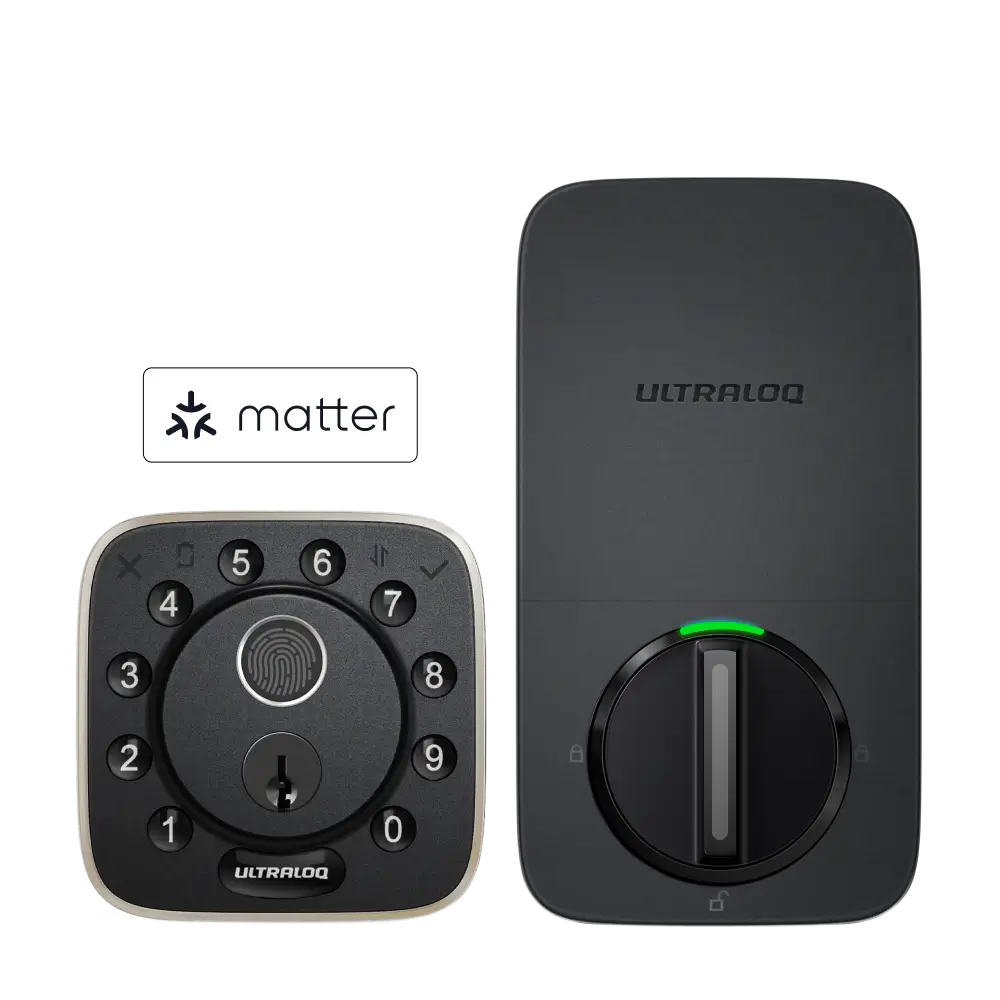
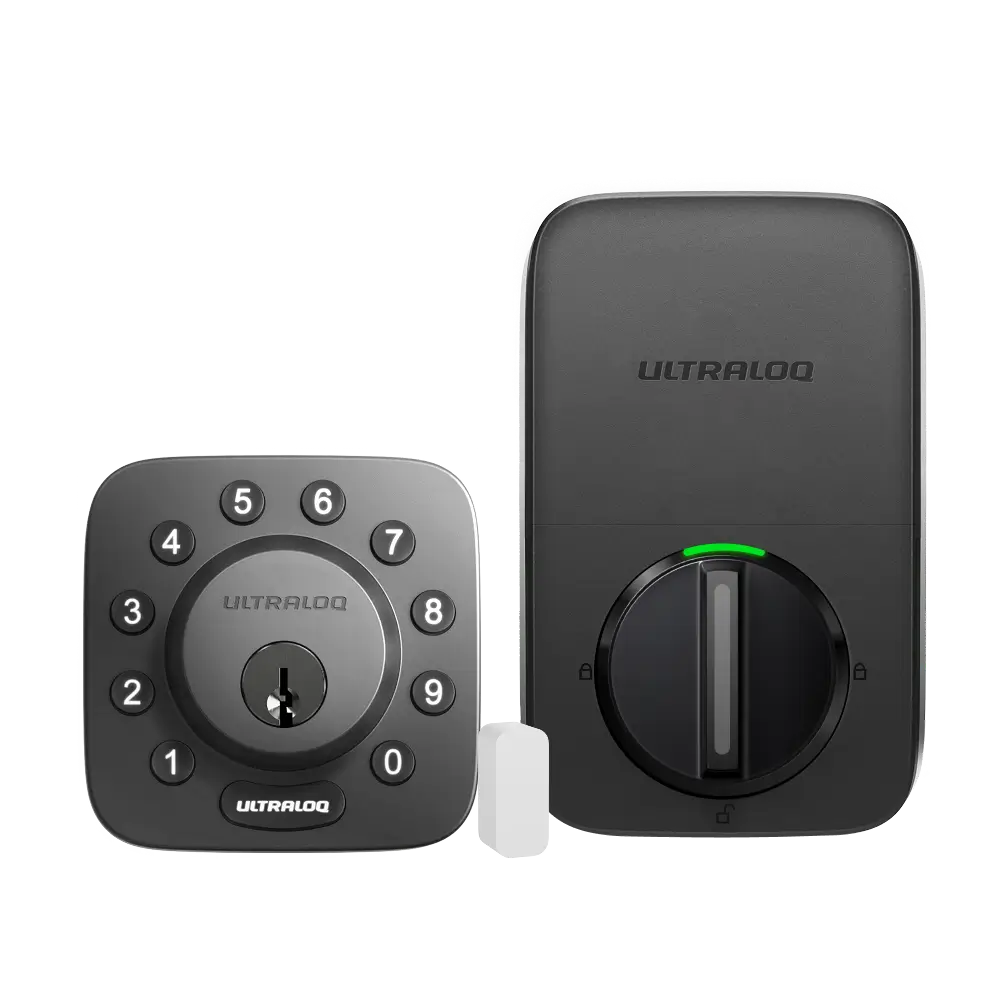
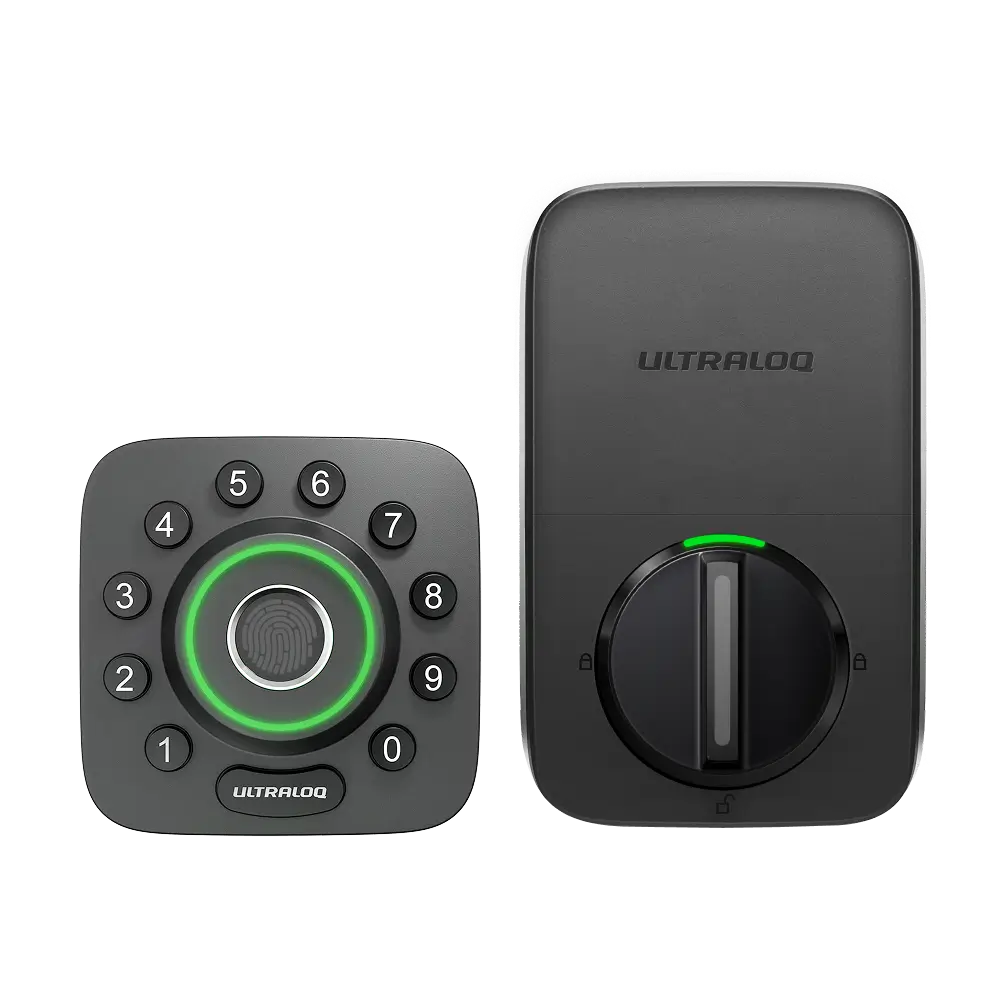
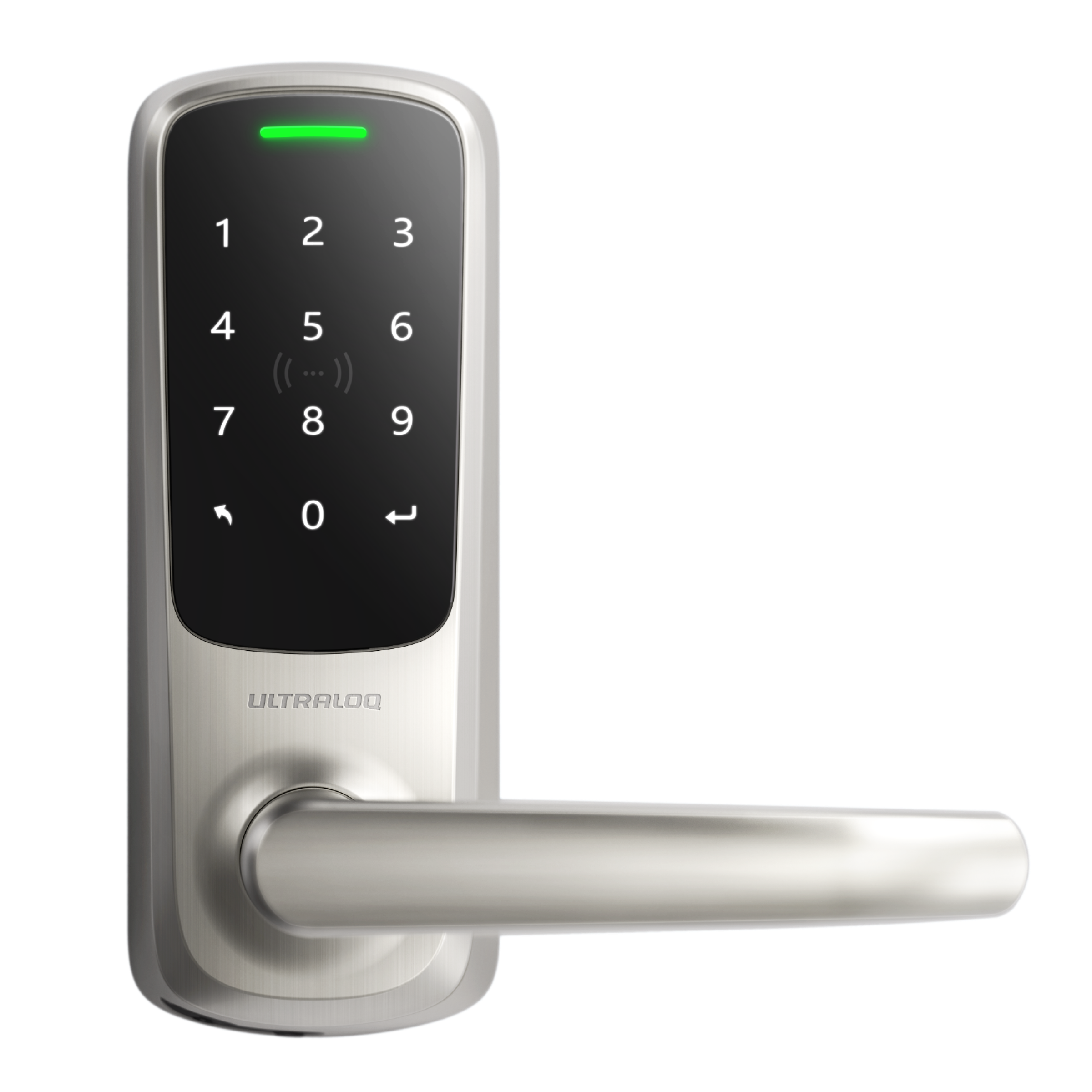
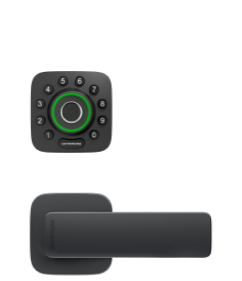
1. Ultraloq U-Bolt Z-Wave or U-Bolt Pro Z-Wave.
2. Hubitat Hub
Required App:
1. Xthings Home(Formerly U home) App.
2. Hubitat App
How to set up?
Step 1. Open Xthings Home(Formerly U home) app--U-Bolt Z-Wave--Settings--Z-Wave control. Tap Add to Z-Wave hub.
Step 2. Tap Start the Inclusion, the app will turn to the "Connecting to Z-Wave Hub" page, keep this interface running then open the Hubitat App.
Step 3. Open the Hubitat App, tap Devices, then choose Discover Devices.
Step 4. Tap Z-Wave then choose Start Z-Wave Inclusion.
Step 5. Choose Confirm, then enter the code. You can find this code on the battery cover. then tap Confirm.
Step 6. Input a label for your lock, then tap Save. You can tap View Device Details to view the device settings.
Step 7. Open the Xthings Home(Formerly U home) app, you will find the status of Z-Wave Control turns to Paired.
Step 8. Open the Hubitat app, you can control and check the lock status now.
How to set disconnect?
Step 1. Open the Xthings Home(Formerly U home) app--U-Bolt Z-Wave--Settings--Z-Wave control. Tap Remove from Z-Wave hub.
Step 2. Tap Start the Exclusion, and the app will turn to the "Disconnecting from Z-Wave Hub" page. Keep this page and open the Hubtait app.
Step 3. Go to the Device Details page, pull it down and choose Remove Device. After a few seconds, the device will be removed successfully.